如何使用选择器(selector)来实现点击按钮变色 简单的选择器操作
<LinearLayout xmlns:android="http://schemas.android.com/apk/res/android"
    xmlns:tools="http://schemas.android.com/tools"
    android:layout_width="match_parent"
    android:layout_height="match_parent"
    android:orientation="vertical" >

    <!-- 我们先写一个按钮 -->
    <Button
        android:id="@+id/bt"
        android:layout_width="wrap_content"
        android:layout_height="wrap_content"
        android:text="点击按钮" />

</LinearLayout>
在values文件夹下新建个color.xml文件,用来设置要显示的颜色↓
<?xml version="1.0" encoding="utf-8"?>
<resources>
	<!-- 设置颜色值 -->
    <color name="red">#FF0000</color>
    <color name="green">#00FF00</color>

</resources>
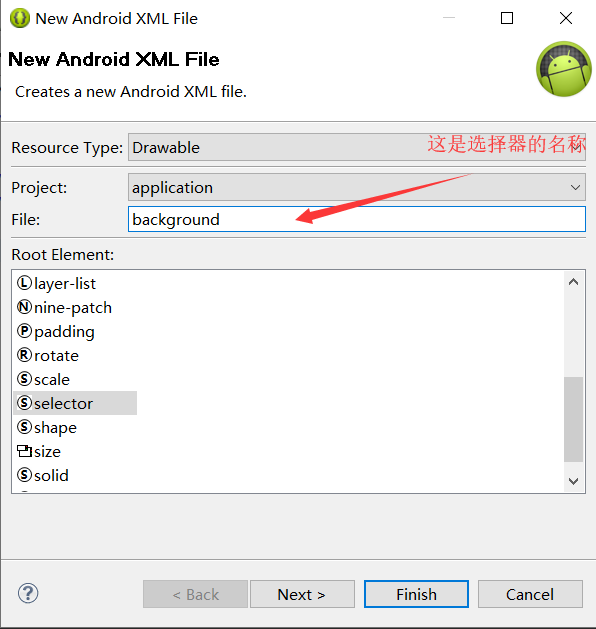
在drawable文件夹下新建一个选择器,如图
在选择器里面设置颜色值
<?xml version="1.0" encoding="utf-8"?>
<selector xmlns:android="http://schemas.android.com/apk/res/android">

    <!-- pressed为true时,是按下按钮,反则相反。drawable是选择在values里的颜色值 -->

    <item android:drawable="@color/green" android:state_pressed="true"></item>
    <item android:drawable="@color/red" android:state_pressed="false"></item>

</selector>
最后一步在按钮控件里加上这段代码就可以了
android:background="@drawable/background"
下面是布局页面的代码
<LinearLayout xmlns:android="http://schemas.android.com/apk/res/android"
    xmlns:tools="http://schemas.android.com/tools"
    android:layout_width="match_parent"
    android:layout_height="match_parent"
    android:orientation="vertical" >

    <!--按钮 -->

    <Button
        android:id="@+id/bt"
        android:layout_width="wrap_content"
        android:layout_height="wrap_content"
        android:background="@drawable/background"
        android:text="点击按钮" />

</LinearLayout>
设置颜色的页面
<?xml version="1.0" encoding="utf-8"?>
<resources>
	<!-- 设置颜色值 -->
    <color name="red">#FF0000</color>
    <color name="green">#00FF00</color>

</resources>
设置选择器的页面
<?xml version="1.0" encoding="utf-8"?>
<selector xmlns:android="http://schemas.android.com/apk/res/android">

    <!-- pressed为true时,是按下按钮,反则相反。drawable是选择在values里的颜色值 -->

    <item android:drawable="@color/green" android:state_pressed="true"></item>
    <item android:drawable="@color/red" android:state_pressed="false"></item>

</selector>
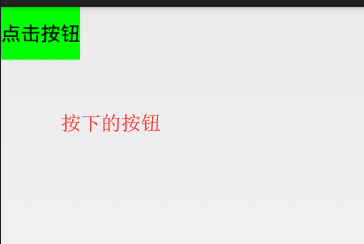
效果图

最后
以上就是俊秀短靴最近收集整理的关于Android开发 如何使用选择器(selector) 来实现点击按钮变色的全部内容,更多相关Android开发内容请搜索靠谱客的其他文章。
本图文内容来源于网友提供,作为学习参考使用,或来自网络收集整理,版权属于原作者所有。








发表评论 取消回复